
Ever felt overwhelmed by the complexity of defining system requirements? The Use Case Description Generator from Visual Paradigm is here to simplify your workflow. This AI-powered tool guides you through a clear, structured process to transform a simple idea—like an online book retail system—into detailed documentation and visual diagrams. By leveraging intelligent AI assistance, you can rapidly generate a comprehensive problem description, identify core use cases, and produce professional Markdown reports and PlantUML diagrams. This streamlined approach ensures your requirements are clear, complete, and easily understood by everyone on your team, from developers to stakeholders. Let’s walk through how this powerful tool works, using an online book retailer as our example.
Here’s a quick summary of what you’ll learn:
-
How to start with a simple problem domain to kick off your analysis.
-
How the AI generates a detailed problem description from your initial input.
-
How candidate use cases are automatically identified and displayed.
-
How to generate a professional use case diagram to visualize your system’s scope.
Step 1: Define Your Problem Domain
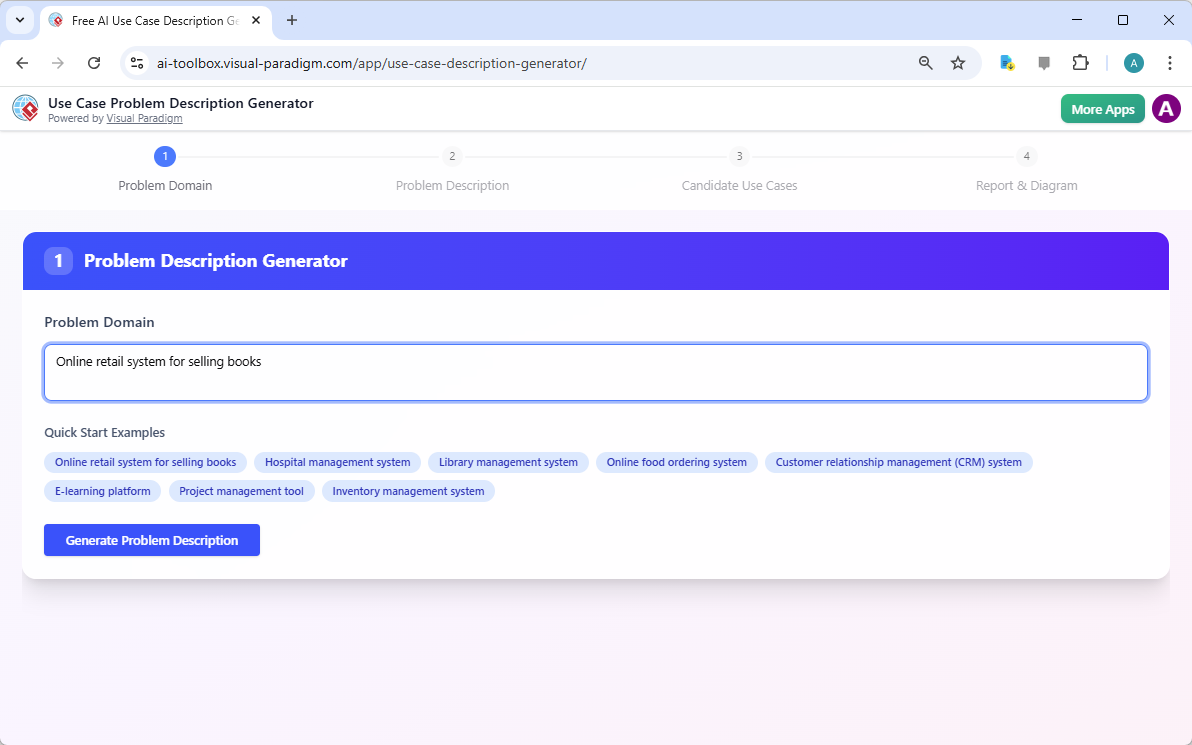
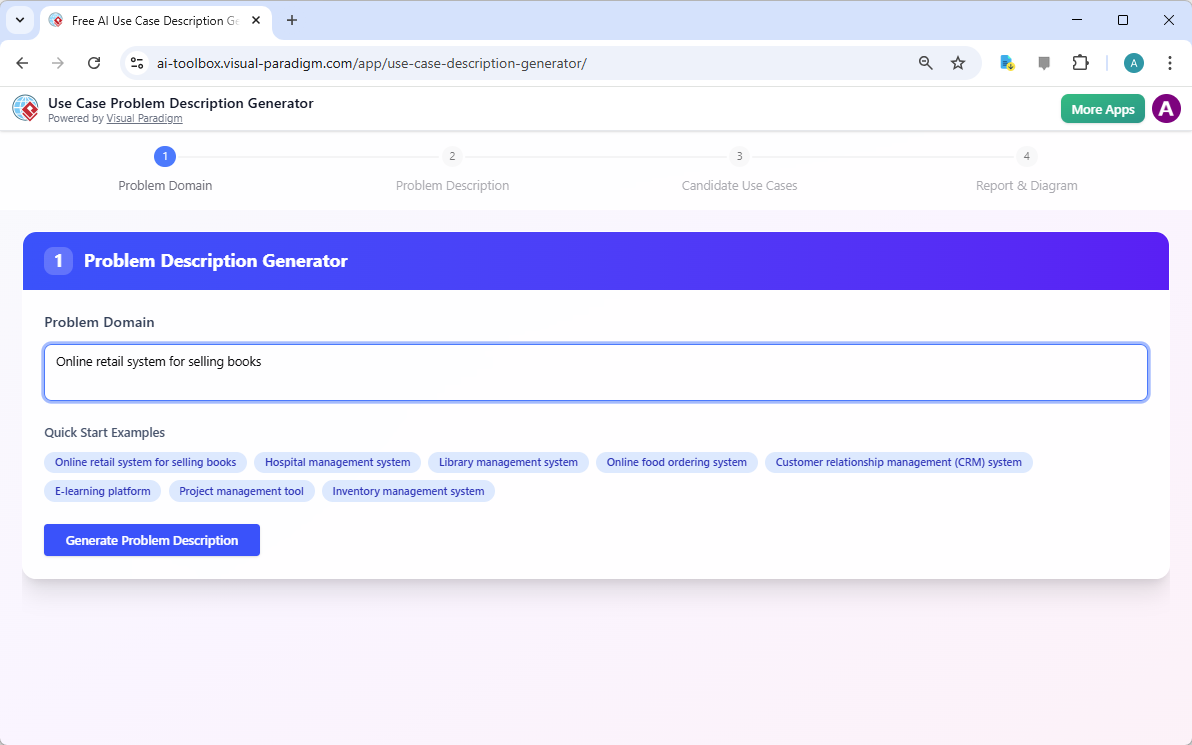
Every great system design begins with a clear understanding of the problem you’re solving. The first step in the Use Case Description Generator is to define your “Problem Domain.” This is your starting point—a simple, high-level description of your system’s purpose. In the image, we see the tool’s interface prompting you to enter a problem domain. For our example, we’ve input “Online retail system for selling books.” This initial step is crucial because it sets the foundation for all subsequent analysis.
Once you’ve entered your problem domain, the AI takes over. It analyzes your input and generates a detailed problem description. This isn’t just a simple summary; it’s a comprehensive narrative that outlines the system’s scope, key functionalities, and the problems it aims to solve. This detailed description ensures that everyone involved has a shared understanding of the project’s context and objectives.
Step 2: Generate a Detailed Problem Description
After defining your problem domain, the tool automatically advances to Step 2: the “Problem Description Generator.” Here, the AI uses the initial input to produce a rich, detailed text that articulates the system’s purpose and scope. The generated text in the image provides a thorough overview, including features like a searchable catalog, secure shopping cart, account creation, and order tracking. This step is essential because it transforms a vague idea into a concrete, actionable problem statement.

With a clear problem description in hand, the tool moves to Step 3: identifying the “Candidate Use Cases.” The AI analyzes the detailed problem description and intelligently identifies the key interactions between users (actors) and the system. This process helps uncover the core functionalities that need to be developed. In our example, the AI has identified use cases such as “Browse Catalogue,” “Add to Shopping Cart,” “Process Checkout,” “Manage Inventory,” and “Handle Payment.” Each use case is associated with a primary actor, such as the Customer, Admin, or Payment Processor.
Step 3: Identify and Detail Your Use Cases
At this stage, you have a list of potential use cases, but you need to understand them in more detail. The Use Case Description Generator allows you to select a specific use case from the list and generate a comprehensive Markdown report. This report includes all the necessary details, such as pre-conditions, post-conditions, the main flow of events, and alternative flows. This level of detail is vital for ensuring that developers and testers have a clear understanding of how the system should behave in different scenarios.

But the tool doesn’t stop there. It also generates a visual representation of all the use cases and actors in a PlantUML use case diagram. This diagram provides a high-level overview of your system’s functionality and scope, making it easy to understand user interactions at a glance. The diagram in the image clearly shows the relationships between the Customer, Admin, and Payment Processor, and how they interact with the system’s various use cases.
Step 4: Visualize and Integrate Your Results
Finally, the tool takes you to Step 4: “Report & Diagram.” Here, you can review your generated use case diagram and access the detailed Markdown reports for each use case. The diagram is interactive, allowing you to zoom in, pan around, and explore the relationships between different use cases. You can also export the diagram or the Markdown reports for use in your project documentation.

One of the most powerful features of this tool is its ability to integrate with other analysis tools. For example, you can use the generated Markdown report to open a use case scenario analyzer or an MVC system architecture generator. This seamless integration allows you to take your use case documentation and immediately begin exploring user scenarios or designing the system’s architecture.
Conclusion
Creating detailed and accurate use case documentation can be a time-consuming and challenging process. The Use Case Description Generator from Visual Paradigm simplifies this task by providing an AI-powered, step-by-step workflow. From defining your problem domain to generating a professional use case diagram, this tool helps you ensure your requirements are clear, complete, and well-communicated. By leveraging this powerful tool, you can accelerate your requirements analysis, improve communication across your team, and create a solid foundation for your software project.
Ready to transform your ideas into professional documentation? Try the Use Case Description Generator now and see how it can streamline your workflow.
Related Links
-
Free AI Use Case Description Generator | Create Clear System Requirements: Generate structured use case descriptions instantly with AI . Define actors, goals, and workflows with clarity. Our Free Use Case Description Generator helps you document, visualize, and communicate system requirements faster and more accurately.
-
Free AI Use Case Description Generator & PlantUML Diagram Tool – Visual …: Generate detailed use case descriptions and PlantUML diagrams from a problem statement with our free AI tool. Streamline your system analysis and design.
-
Streamline Your Workflow with an AI-Powered Use Case Description Generator: The AI -Powered Use Case Description Generator is just one of the many powerful tools available in the Visual Paradigm suite. Whether you’re a new user or a seasoned pro, Visual Paradigm has everything you need to design, build, and manage your software projects.
-
Use Case Description Generator Examples – Visual Paradigm AI: Discover practical examples of AI -generated use case descriptions across industries like healthcare, cinema booking, and more. See how the AI Use Case Description Generator helps you create effective use case models for your projects.
-
AI Base Use Case Diagram Analyzer – AI Powered Use Case Reports and Test Cases: Automatically generate use case reports, flow of events, scenarios, and test cases from your PlantUML base use case diagrams using AI .
-
AI-Generated Use Case Description: Ride-Hailing App Example – Visual Paradigm AI: The tool generates a complete and editable problem description, capturing passenger ride requests, driver acceptance, payment processing, surge pricing, ratings, and administrative functions .
-
What is a Use Case Scenario Analyzer? A Guide to AI-Powered Decision Making – Visual Paradigm Guides: September 11, 2025 – You can either type this directly into the tool, paste it from another document, or even use an AI-powered tool like Visual Paradigm’s “Use Case Description Generator” to create a high-quality description for you.