
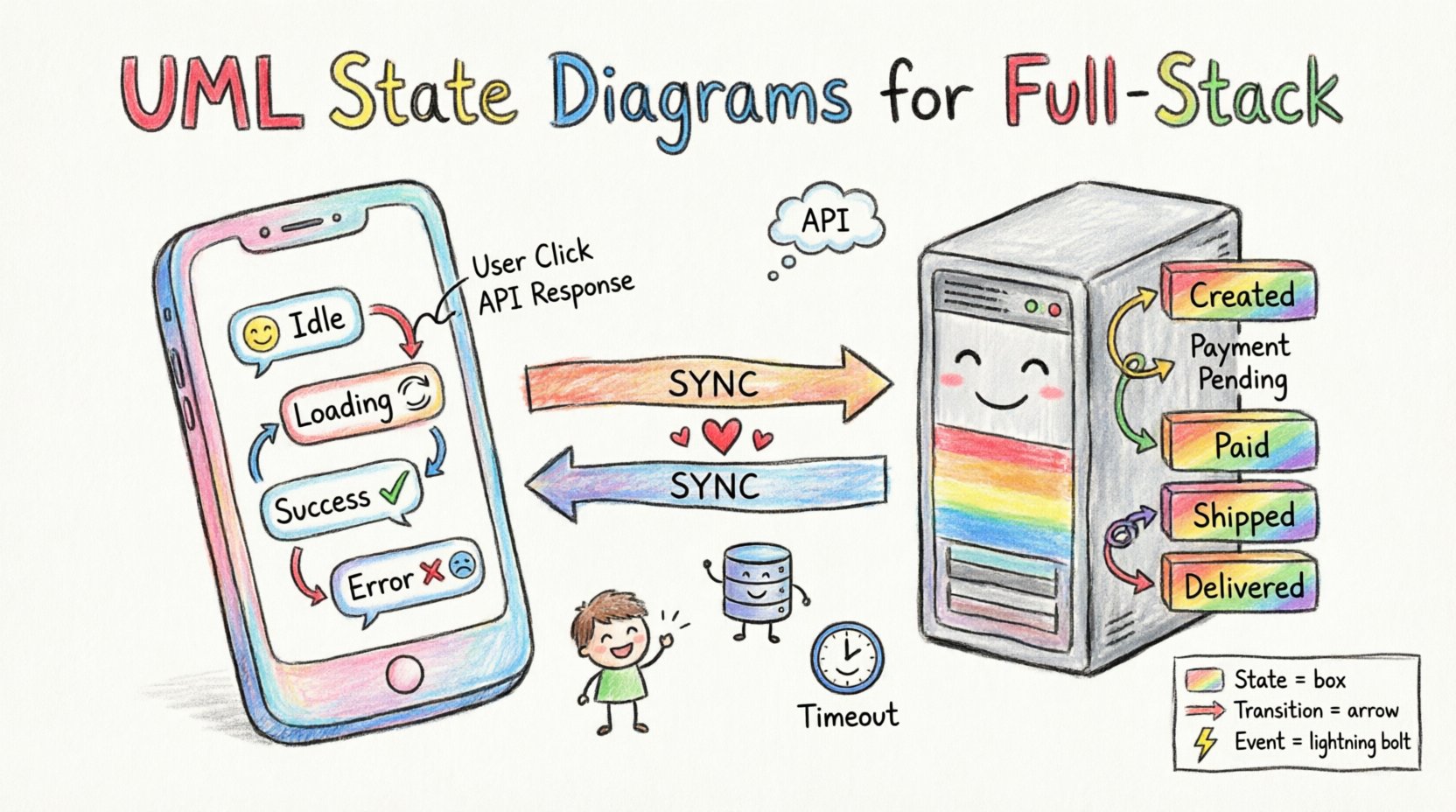
Building robust applications requires more than just writing functional code. It demands a clear mental model of how data and user interactions evolve over time. In complex systems, logic often branches into multiple paths based on user input, server responses, or internal timers. This is where the UML state diagram becomes an essential tool for architects and developers. By visualizing the lifecycle of an object or a session, teams can identify edge cases, race conditions, and inconsistent states before implementation begins.
This guide explores how to apply state machine diagrams across the full-stack spectrum. We will examine frontend user interfaces, backend transactional logic, and the critical synchronization required to keep both sides aligned. Whether you are designing a simple form or a complex order processing system, understanding state transitions improves reliability and reduces maintenance costs.
🧠 Core Concepts of State Machine Diagrams
Before diving into specific implementation contexts, it is vital to establish a shared vocabulary. A state diagram models the dynamic behavior of a system. It answers the question: “What happens next, and under what conditions?”
The fundamental building blocks include:
- State: A condition or situation during the life of an object during which it satisfies some condition, performs some activity, or waits for some event. Examples include “Loading,” “Authenticated,” or “Idle.”
- Transition: The movement from one state to another. This is triggered by an event.
- Event: Something that happens at a particular point in time and triggers a transition. Examples include “User Click,” “API Response,” or “Timeout.”
- Action: An executable activity performed in response to an event or during a state entry/exit. Examples include “Fetch Data” or “Update UI.”
- Guard Condition: A boolean expression that must be true for a transition to occur. For example, “if balance > 0”.
Visualizing these elements allows developers to see the entire lifecycle of a component. Without this diagram, logic often becomes scattered across multiple files, making it difficult to trace the flow of data.
📱 Frontend State Management: The User Interface Layer
The frontend is the most visible part of the application. It reacts directly to user input. In this context, state diagrams help manage the visual feedback and data availability within the client-side environment.
1. Handling Asynchronous Operations
Modern web applications rely heavily on asynchronous requests. A state diagram clarifies the possible outcomes of a network request. Instead of scattering logic across event handlers, you define clear states:
- Idle: The component is ready for interaction.
- Loading: A request is in progress. The UI should show a spinner or skeleton.
- Success: Data has been received. The UI displays content.
- Error: The request failed. The UI shows an error message with a retry option.
- Paused: (Optional) Used for long-running tasks that allow user interruption.
By defining these states explicitly, you prevent race conditions where a user might click “Submit” multiple times while a request is already pending. The state diagram dictates that the “Submit” event is ignored while the system is in the “Loading” state.
2. Form Validation and Submission
Forms are complex state machines in themselves. A form field can be empty, valid, invalid, or disabled. The submission process involves multiple internal states.
Consider a registration form. The flow might look like this:
- Initial State: All fields are empty. Submit button is disabled.
- Validation State: User types. Fields turn green (valid) or red (invalid).
- Submitting State: User clicks Submit. Button disables. Spinner appears.
- Completion State: Server confirms. Redirect user or show success message.
This structure ensures that users cannot submit incomplete data. The state diagram acts as a contract between the design team and the development team.
3. Modal and Navigation Logic
Pop-ups, modals, and navigation drawers also require state management. You must decide what happens when a user tries to close a modal while a form is being saved. The diagram helps define the “Guard Condition” for closing actions.
- Is there unsaved data?
- Is a network request active?
- Is the system in a “Locked” state?
If any of these conditions are true, the “Close” event triggers a warning state instead of immediately returning to the “Idle” state.
🖥️ Backend State Logic: Transactions and Workflows
While the frontend handles visual states, the backend manages data integrity and business logic. Backend state diagrams are crucial for handling transactions, user sessions, and order processing.
1. Order Processing Lifecycle
An e-commerce order is a classic example of a backend state machine. The state of an order determines what operations are allowed.
- Created: Order is placed. Payment is pending.
- Payment Pending: Waiting for external payment gateway response.
- Paid: Funds received. Inventory reserved.
- Processing: Warehouse has been notified.
- Shipped: Item dispatched with tracking number.
- Delivered: Customer confirmed receipt.
- Cancelled: Order voided at any point before delivery.
- Refunded: Money returned to customer.
It is critical to define which transitions are valid. For instance, an order cannot move from “Shipped” directly to “Paid.” It must follow the logical path. This prevents data corruption where inventory is deducted without payment.
2. Authentication and Session Management
User authentication is another area where state diagrams provide clarity. A user session has a defined lifespan and specific transition rules.
- Anonymous: No user logged in.
- Authenticated: Valid token present.
- Token Refreshing: Access token expired, refreshing with refresh token.
- Locked: Too many failed login attempts.
- Logged Out: Session terminated.
The backend must enforce these states. If a request comes in with an expired token, the system must transition the session to “Token Refreshing” or “Logged Out” rather than processing the request with stale data.
3. Background Jobs and Queues
Long-running tasks, such as video rendering or email dispatch, also follow state patterns. These tasks often move through a queue.
- Queued: Task waiting for resources.
- Running: Task is executing.
- Failed: Task encountered an error. Retry logic triggers.
- Completed: Task finished successfully.
Defining these states helps in monitoring system health. If too many tasks remain in “Failed” state, it indicates a systemic issue requiring immediate attention.
🔗 Synchronizing Frontend and Backend
The greatest challenge in full-stack development is ensuring the frontend state matches the backend state. If the UI says “Paid” but the database says “Pending,” the user experience breaks. State diagrams help map these two layers together.
1. Mapping States
Every frontend state should have a corresponding backend state. A table can help visualize this alignment.
| Frontend State | Backend State | Trigger Event | Action |
|---|---|---|---|
| Loading Data | Fetching Record | API Call Initiated | Show Spinner |
| Success | Record Retrieved | 200 OK Response | Render Content |
| Error | Record Not Found | 404 Response | Show Error Message |
| Submitting | Processing Transaction | POST Request | Disable Inputs |
| Confirmation | Transaction Committed | 201 Created Response | Redirect Page |
This mapping ensures that the user interface reflects the actual status of the data stored on the server. It also helps developers debug issues. If the UI shows “Success” but the data is missing, the mismatch is immediately apparent.
2. Handling Optimistic Updates
Some applications update the UI before the server confirms the change. This is called optimistic UI. State diagrams help manage the risk here.
- Optimistic State: UI updates immediately.
- Verification State: System waits for server confirmation.
- Rollback State: If confirmation fails, revert UI to previous state.
Without a defined rollback state, users might see incorrect data if the network fails. The diagram explicitly requires a transition back to the previous state upon failure events.
3. Handling Race Conditions
Users often click buttons rapidly. Two requests might be sent simultaneously. State machines prevent this by entering a “Locked” state upon the first request.
- Event A triggers transition to “Processing”.
- Event B is received while in “Processing”.
- Transition is ignored or queued.
- Transition completes, returning to “Idle”.
This logic is easier to implement when the states are defined visually. It prevents duplicate orders or double bookings in calendar applications.
🛠️ Advanced Techniques for Complex Systems
As systems grow, simple state diagrams become cluttered. Advanced features in UML help manage this complexity without losing clarity.
1. Hierarchical States
Complex states can contain sub-states. This reduces the number of transitions needed.
- Parent State: “Payment Processing”
- Child State: “Credit Card”
- Child State: “PayPal”
- Child State: “Bitcoin”
If the user wants to change payment methods, they transition from the parent state “Payment Processing” to “Payment Method Selection.” If they change from “Credit Card” to “PayPal” while inside “Payment Processing,” the system handles the switch without restarting the entire process.
2. History States
A history state remembers where the system was before entering a composite state. This is useful for navigation.
- User is on “Settings”.
- User clicks “Profile” (enters “User Management” state).
- User clicks “Back”.
- System remembers the specific sub-state within “User Management” (e.g., “Edit Profile”).
This improves the user experience by preserving context.
3. Entry and Exit Actions
Actions can be tied to entering or leaving a state.
- Entry Action: “Start Timer” when entering “Idle”.
- Exit Action: “Save Data” when leaving “Edit Mode”.
These actions ensure that cleanup and initialization happen automatically, reducing the chance of memory leaks or orphaned processes.
⚠️ Common Pitfalls and Best Practices
Even with a good diagram, implementation can go wrong. Here are common issues to avoid when designing state diagrams for full-stack applications.
1. Too Many States
If a diagram has more than 20 states, it is likely too complex. Refactor the logic. Break the system into smaller modules. Each module should have its own state diagram.
2. Ignoring Error Paths
Happy paths are easy to diagram. Failure paths are often forgotten. Always include transitions for:
- Network timeouts.
- Server errors (500).
- Invalid input.
- Permission denied (403).
A state diagram without error handling is incomplete.
3. Inconsistent Naming
Use consistent naming conventions for events and states. If the frontend uses “onLoad” and the backend uses “init,” synchronization becomes difficult. Agree on a standard vocabulary before coding begins.
4. Hardcoding States
Avoid hardcoding state values in strings. Use enumerated types or constants. This makes refactoring easier and prevents typos that break logic.
🚀 Conclusion
Designing with UML state diagrams brings discipline to full-stack development. It forces developers to think about every possible condition before writing a single line of code. By mapping frontend interactions to backend transactions, teams can build systems that are resilient, predictable, and easy to maintain.
Whether managing a simple form submission or a complex order fulfillment workflow, the state machine pattern provides a solid foundation. It reduces bugs, clarifies communication between designers and engineers, and ensures that the application behaves correctly under all circumstances. Start diagramming your next project to improve quality and reduce technical debt.