
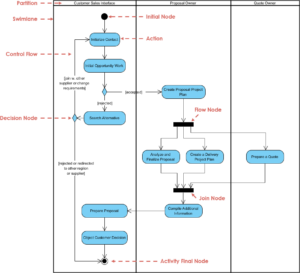
Designing software that feels intuitive requires more than just pretty interfaces. It demands a deep understanding of how a system behaves over time. When users interact with an application, they are navigating a landscape of conditions. They expect the system to remember where they left off, react correctly to their inputs, and guide them toward their goals without confusion. This is where the UML State Diagram becomes indispensable.
A State Machine Diagram visualizes the lifecycle of an object or a system. It maps out every possible condition a component can exist in, the triggers that move it from one condition to another, and the actions taken during those movements. For user journey mapping, this tool provides the skeleton upon which the flesh of the user experience is built. It ensures that logic is sound before a single line of code is written.

Why State Modeling Matters for UX 🎯
Many teams focus heavily on flowcharts or wireframes. While valuable, these tools often lack the nuance required to describe complex system behaviors. A flowchart shows a path from start to finish, but it does not explicitly define the state of the system at each step. A state diagram fills this gap.
Consider a simple e-commerce checkout process. A user adds items to a cart, proceeds to payment, and enters shipping details. If they pause, the system must hold that state. If they return later, the system must restore it. If payment fails, the system must transition to an error state without losing the cart contents. Without a formal state model, these scenarios often lead to bugs, data loss, and frustrated users.
By defining states clearly, you establish a contract between the user and the system. This reduces ambiguity for developers and designers. It ensures that everyone agrees on what the system looks like when the user sees a loading spinner, an error message, or a success confirmation.
Anatomy of a State Machine Diagram 🔍
To build effective diagrams, you must understand the fundamental building blocks. Each element serves a specific purpose in defining behavior. Precision here prevents logic errors later.
- State: A condition during which the system satisfies some condition, performs some activity, or waits for an event. Visually represented as a rounded rectangle.
- Initial State: The starting point of the diagram. Usually a solid black circle.
- Final State: The termination point. Usually a solid black circle with a surrounding ring.
- Transition: The movement from one state to another. Represented by an arrow.
- Event: Something that triggers a transition. Examples include a button click, a timer expiration, or an API response.
- Guard Condition: A boolean expression that must be true for a transition to occur. Written in square brackets, e.g., [IsAuthenticated].
- Action: An activity performed during a transition or while in a state. Often written as action/event.
Understanding these components allows you to deconstruct complex interactions into manageable pieces. You stop thinking about the whole process as a monolith and start seeing it as a series of logical steps.
Bridging User Actions and System Logic 🔄
One of the most challenging aspects of system design is aligning user intent with system capability. Users operate on intent; systems operate on state. The state diagram acts as the translator.
When mapping a user journey, identify the user actions first. Then, determine the system state required to accommodate that action. Sometimes, an action is blocked because the system is in the wrong state. The diagram makes these blockages visible.
Below is a comparison of how user-facing elements map to internal state logic.
| User Experience Element | Underlying System State | Typical Event Trigger |
|---|---|---|
| Disabled Submit Button | FormIncomplete | FieldValidationComplete |
| Loading Spinner | ProcessingRequest | RequestInitiated |
| Error Message | TransactionFailed | PaymentGatewayResponse |
| Success Confirmation | TransactionCompleted | DBCommitSuccess |
| Logout Option | Authenticated | UserSessionActive |
This table highlights that visible UI elements are often just reflections of internal states. If the UI shows a disabled button, the system should logically be in a state where submission is not permitted. This alignment prevents “ghost” states where the UI looks ready but the backend rejects the request.
Step-by-Step Construction Process 🛠️
Building a diagram from scratch can be overwhelming. A structured approach ensures nothing is missed. Follow these steps to create a robust model.
- Define the Scope: Decide what part of the system you are modeling. Is it the entire application or just a specific feature like a search module? Narrowing the scope keeps the diagram readable.
- Identify the Initial State: Where does the user enter the flow? This is usually the “Home” or “Logged Out” state.
- List All States: Brainstorm every condition the system must hold. Be specific. Instead of “Error,” use “NetworkError” or “ValidationError.”
- Map the Events: What causes movement? List every user action or system signal that could trigger a change.
- Draw the Transitions: Connect the states using arrows. Label each arrow with the event that causes the move.
- Add Guard Conditions: Where does the path split? Use brackets to define conditions for specific routes.
- Review for Cycles: Ensure the system does not get stuck in an infinite loop of states without progress.
- Verify Final States: Does every path lead to a logical conclusion or a recovery point?
During this process, it is helpful to sketch on paper before moving to digital tools. Paper allows for rapid iteration without worrying about alignment or formatting. Once the logic is solid, you can digitize it.
Managing Complexity with Advanced Patterns 🧩
As systems grow, simple linear diagrams become cluttered. To maintain clarity, advanced patterns are necessary. These patterns help manage depth and parallelism.
Substates and Hierarchies
When a state is too complex to define in a single box, it can contain substates. For example, a “Processing Order” state might contain substates for “Payment Validation,” “Inventory Check,” and “Shipping Label Generation.” This hierarchical approach keeps the main diagram clean while allowing detailed logic where needed.
History States
Sometimes a user leaves a complex flow and returns to it. A history state allows the system to remember which substate was active previously. This is crucial for long-running processes where users expect to resume exactly where they left off.
Fork and Join
In some journeys, multiple actions happen simultaneously. A fork transition splits a single path into multiple parallel paths. A join transition waits for all parallel paths to complete before continuing. This is useful for scenarios like downloading a file while sending a confirmation email.
Common Pitfalls in Diagram Design ⚠️
Even experienced designers make mistakes. Recognizing these pitfalls early saves significant rework later.
- Too Many States: If the diagram has hundreds of nodes, it is likely too detailed. Look for opportunities to group states or abstract details into substates.
- Missing Error Paths: It is common to diagram the “Happy Path” and forget the errors. Every transition should consider failure cases. What happens if the network drops? What if the user cancels?
- Ambiguous Labels: Transitions should be named after the event, not the action. Use “LoginFailed” rather than “ShowError.” This keeps the focus on the trigger.
- Disconnected Components: Ensure every state is reachable from the initial state. Orphaned states indicate dead code or unused logic.
- Ignoring Asynchronous Events: Systems often wait for external data. Ensure your diagram accounts for timeouts or delayed responses, not just immediate inputs.
A clean diagram is a tool for communication. If a developer looks at it and asks “What happens if X?”, you have a hole in your model. Fill those holes.
Keeping Your Model Current 🔄
Software is rarely static. Features are added, and logic changes. A state diagram that is not maintained becomes a source of confusion. Treat the diagram as a living document.
Integrate diagram updates into your development lifecycle. When a new feature is planned, update the state model before coding begins. When a bug is fixed, verify if the state logic has changed and update the diagram accordingly. This ensures the documentation matches the reality of the codebase.
Regular reviews are essential. Schedule sessions where designers and developers walk through the diagram together. This collaborative review often uncovers edge cases that a single person might miss.
Conclusion
Creating clear user journeys requires a disciplined approach to system behavior. UML State Diagrams provide the structure needed to visualize these behaviors with precision. By mapping states, events, and transitions, you create a blueprint that aligns technical implementation with user expectations.
Focus on clarity over complexity. Use substates to manage depth, guard conditions to control flow, and history states to preserve context. Avoid the temptation to over-engineer the diagram, but never neglect the error paths. A well-documented state machine is a foundation for a stable, reliable application.
As you continue your work, remember that the goal is not just to draw a diagram, but to understand the system. When the logic is clear, the code follows. When the states are defined, the user experience is seamless. This is the quiet power of modeling.