
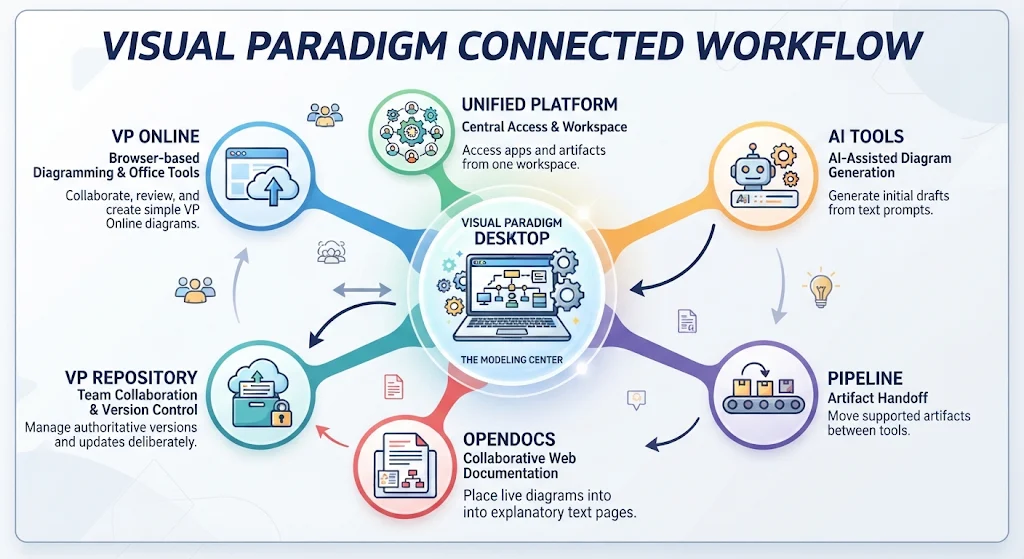
In the realm of enterprise software engineering and business process modeling, the complexity of a diagram often rivals the complexity of the system it represents. However, the true power of a modeling tool lies not just in its ability to draw a box, but in how that diagram fits into the broader ecosystem of documentation and collaboration. Visual Paradigm has evolved into a sophisticated ecosystem where distinct tools—Desktop, Online, AI, Pipeline, and OpenDocs—work in concert.
This tutorial explores the architecture of the Visual Paradigm Connected Workflow. We will move beyond isolated diagramming and explore how to manage the lifecycle of a model, from a raw AI-generated idea to a finalized, context-rich document in OpenDocs, all while maintaining version control and data integrity.
The Core Architecture: Visual Paradigm Desktop
At the heart of this ecosystem is Visual Paradigm Desktop. Think of this as the “engine room” or the workbench. While other tools handle collaboration or visualization, Desktop is where the heavy lifting happens. It is designed for detailed modeling, complex engineering-oriented capabilities, and ongoing project maintenance.
When you are building a system that requires rigorous structure, strict adherence to standards, or deep analysis, you begin here. The Desktop environment supports a wide array of notations and provides the robust data model necessary for enterprise-grade projects.
The Ecosystem: Supporting Roles
While Desktop is the center, it is surrounded by specialized components that extend its reach. Understanding the distinct role of each component is crucial for a successful workflow.
1. AI Tools: The Ideation Phase
The workflow often begins with an idea. Visual Paradigm’s embedded AI tools allow you to draft diagrams or explore concepts directly from text prompts. This is an excellent way to jumpstart the modeling process.
- Role: Rapid prototyping and initial drafting.
- Best Practice: Treat AI-generated output as a “first draft.” It is a starting point for exploration, not a finalized design. Always review the generated results for accuracy, terminology consistency, and completeness before adopting them.
2. VP Online: Collaboration & Accessibility
For teams that require browser-based access or need to collaborate in real-time without the overhead of a desktop client, VP Online is the solution. It offers the same fundamental diagramming capabilities as Desktop but optimized for web access.
- Role: Creating and reviewing diagrams in a shared web environment.
- Best Practice: Use this when the task benefits from immediate web access or when the diagram is simple enough to be managed entirely in a browser.
3. Unified Platform: The Central Workspace
The Unified Platform acts as the command center. It does not replace the individual tools but organizes access to them. It serves as a central workspace for discovering applications and locating artifacts across the ecosystem.
- Role: A starting point for navigation. It allows users to find and launch relevant apps and locate work across the ecosystem.
- Best Practice: For Desktop users, access the Unified Platform via
Team > Unified Platform > Unified Platform. For others, it is accessible via the browser.
4. Pipeline: The Handoff Mechanism
One of the most critical architectural decisions in a workflow is how to move data between tools. The Pipeline provides the “handoff” for supported artifacts. It is the bridge that allows you to send diagrams from Desktop to OpenDocs.
- Role: A transfer route for supported artifacts between Visual Paradigm tools.
- Key Concept: The Pipeline requires an internet connection and is designed to move specific artifacts (like diagrams) from a local environment to a cloud-based repository.
5. OpenDocs: Contextual Documentation
A diagram in isolation is often insufficient. OpenDocs is the destination where diagrams meet explanatory text. It is a place to combine diagrams with project documentation, requirements, and decisions.
- Role: Collaborative web documentation that embeds live diagrams alongside text.
- Best Practice: A diagram is significantly easier to use when it appears near the text that explains it. This is vital for requirements documents, architecture references, and onboarding materials.
Implementing the Workflow: A Step-by-Step Guide
Now that we understand the components, let’s walk through a practical, end-to-end workflow. This process demonstrates how to manage the lifecycle of a model from conception to publication.
Step 1: Initiation and Ideation
Start with a business need, user requirement, or technical question. You have three options to create the initial draft:
- AI Drafting: Use an AI tool to generate a diagram from a prompt.
- Desktop Modeling: Create the diagram directly in Visual Paradigm Desktop for detailed work.
- VP Online: Use browser-based creation if the task suits web editing.
At this stage, ensure you keep relevant requirements and notes with the project. This context is crucial for reviewers to understand the diagram’s intent.
Step 2: Review and Refine
Whether the output came from AI or manual creation, it is not yet final. Treat it as a first draft.
- Validation: Check that the diagram reflects the requirements and uses consistent terminology.
- Refinement: If the work needs detailed modeling and maintenance, refine it in Desktop. If collaborative editing is needed, use VP Online.
- Authority: Agree on which version is authoritative. Do not treat several exported copies as equally current. Designate a single source of truth (e.g., a Desktop project or a specific online artifact).
Step 3: The Handoff (Pipeline)
Once the diagram is approved and refined, it needs to be moved to the documentation layer. This is done via the Pipeline.
- Open the project and diagram in Visual Paradigm Desktop.
- Right-click the diagram and choose
Export > Send to OpenDocs Pipeline. - Save the project if prompted.
- Add an optional comment identifying the artifact’s purpose or revision.
- Confirm the transfer. This sends the diagram to the cloud-based Pipeline.
Step 4: Contextualization in OpenDocs
Now that the artifact is in the cloud, it must be placed in a document. Open OpenDocs and enter edit mode on the relevant page.
- Place the cursor where the diagram belongs.
- Choose
Insert > Pipelineand select the artifact. - Add Text: Insert text that explains the diagram’s purpose, scope, assumptions, and decisions.
Step 5: Publishing Updates Deliberately
The workflow is not a continuous, automatic two-way sync. It is a connected workflow with managed handoffs. When the source diagram changes, you must update it deliberately.
- Update the diagram in the source tool (Desktop).
- Send the revised artifact through the Pipeline again.
- Review the OpenDocs page and replace the embedded artifact with the appropriate revision.
Warning: Do not assume that editing the Desktop diagram automatically changes every copy. You must review the page after an update to ensure the diagram and its accompanying explanation still agree.
Summary: A Connected Ecosystem
The Visual Paradigm Connected Workflow is designed to bridge the gap between engineering and documentation. By utilizing AI for speed, Desktop for depth, and OpenDocs for context, teams can create robust, maintainable, and well-documented systems.
Remember: This ecosystem is not just about drawing diagrams; it is about managing the flow of information. Use the Pipeline to manage handoffs, the Unified Platform to navigate your workspace, and always designate a single authoritative version of your artifacts to avoid confusion.